Showing posts with label Stata. Show all posts

28 June 2017

Updated programs and guide to integrating Stata and external text editors

The rundo and rundolines programs for integrating Stata with an external text editor were updated to version 5.1. The programs are compatible with Stata 15, released in June 2017, and Stata 14, released in April 2015. Users of older versions of Stata can install rundo and rundolines version 4.1. The user guide for the rundo and rundolines programs was also revised.

Stata/SE 15.0 program window
Stata/SE 14.0 program window

External links

Related articles

Friedrich Huebler, 28 June 2017, Creative Commons License
Permanent URL: http://huebler.blogspot.com/2017/06/stata.html

28 June 2015

Unicode version of programs to integrate Stata and external text editors

I am pleased to announce a new version of the rundo and rundolines programs for integrating Stata with an external text editor. Version 5.0 of rundo and rundolines supports Unicode and is fully compatible with Stata 14, released in April 2015. Support for Unicode was one of the new features of Stata 14. The user guide for the rundo and rundolines programs has also been revised.

With this announcement I am withdrawing version 4.2 of rundo and rundolines, which I had released in April 2015. Version 4.2 could be used with Stata 14 but did not support Unicode. Users of Stata 14 should install rundo or rundolines version 5.0. Users of Stata 13.1 and older versions of Stata should install rundo or rundolines version 4.1 from December 2013. All versions are available on the page dedicated to rundo and rundolines.

Stata/SE 14.0 program window

External links

Related articles

Friedrich Huebler, 28 June 2015, Creative Commons License
Permanent URL: http://huebler.blogspot.com/2015/06/stata.html

18 April 2015

Updated programs and guide to integrating Stata and external text editors

The rundo and rundolines programs for integrating Stata with an external text editor were updated to version 4.2. The programs are now compatible with Stata 14, released in April 2015. The user guide for the rundo and rundolines programs was also revised.

Stata/SE 14.0 program window

External links

Related articles

Friedrich Huebler, 18 April 2015, Creative Commons License
Permanent URL: http://huebler.blogspot.com/2015/04/stata.html

22 December 2013

Updated programs and guide to integrating Stata and external text editors

The rundo and rundolines programs for integrating Stata with an external text editor were updated to version 4.1 to be compatible with Stata 13. The user guide for the rundo and rundolines programs was also revised. Changes include:

  • All Stata references in the guide were updated to version 13.1, the most recent version as of December 2013.
  • The troubleshooting section was expanded.
  • All broken links in the user guide were repaired.
  • The formatting of the guide was modified so that it is retained when the blog translation tool is used to read the guide in a different language.

Stata/SE 13.1 program window

External links

Related articles

Friedrich Huebler, 22 December 2013, Creative Commons License
Permanent URL: http://huebler.blogspot.com/2013/12/stata.html

31 August 2012

Guide to creating maps with Stata

Most charts and maps on this site were created with the Stata statistical software package. This guide explains how maps like those with adult and youth literacy rates in 2010 can be created with Stata. The article supersedes an earlier version from 2005 and introduces updated maps with current country borders. For example, South Sudan, which seceded from Sudan in 2011, is shown as a separate country on the new maps. The instructions below are for Stata version 9 or later. Users of Stata 8 are referred to the guide from 2005. The creation of maps is not supported in older versions of Stata.

Requirements

  • Stata version 9.2 or later.
  • spmap: Stata module for drawing thematic maps, by Maurizio Pisati. spmap can be installed in Stata with this command:
      ssc install spmap
  • shp2dta: Stata module for converting shapefiles to Stata format, by Kevin Crow. shp2dta can be installed in Stata with this command:
      ssc install shp2dta
  • Shapefile: A shapefile is a data format for geographic information systems. For the maps in Figures 1 and 2, please download this public domain shapefile from Natural Earth:
    ne_110m_admin_0_countries.zip (184 KB, world map with country borders, scale 1:110,000,000)
  • Note: The instructions are accurate for Natural Earth maps version 2.0.0, the most recent version of the maps available in April 2014.

Step 1: Convert shapefile to Stata format

  • Unzip ne_110m_admin_0_countries.zip to a folder that is visible to Stata, for example the current working directory of Stata. The archive contains six files:
    ne_110m_admin_0_countries.dbf
    ne_110m_admin_0_countries.prj
    ne_110m_admin_0_countries.shp
    ne_110m_admin_0_countries.shx
    ne_110m_admin_0_countries.README.html
    ne_110m_admin_0_countries.VERSION.txt
  • Start Stata and run this command:
      shp2dta using ne_110m_admin_0_countries, data(worlddata) coor(worldcoor) genid(id)
  • Two new files will be created: worlddata.dta (with the country names and other information) and worldcoor.dta (with the coordinates of the country boundaries).
  • If you plan to superimpose labels on a map, for example country names, run the following command instead, which adds centroid coordinates to the file worlddata.dta:
      shp2dta using ne_110m_admin_0_countries, data(worlddata) coor(worldcoor) genid(id) genc(c)
  • Please refer to the spmap documentation to learn more about labels.
  • The DBF, PRJ, SHP, and SHX files are no longer needed and can be deleted.

Step 2: Draw map with Stata

  • Open worlddata.dta in Stata.
  • For the example maps, create a variable with the length of each country's name. The Stata command for this is:
      generate length = length(admin)
  • Draw a map that indicates the length of all country names with this command:
      spmap length using worldcoor.dta, id(id)
  • The default map (Figure 1) is grayscale, it shows Antarctica, there are four classes for the length of the country names, the legend is very small, and the legend values are arranged from high to low.

Figure 1: Length of country names (small scale map, default style)

Click image to enlarge.

  • A second map without Antarctica, with a blue palette, five classes, and with a bigger legend with values arranged from low to high (Figure 2) can be drawn with this command:
      spmap length using worldcoor.dta if admin!="Antarctica", id(id) fcolor(Blues) clnumber(5) legend(symy(*2) symx(*2) size(*2)) legorder(lohi)
  • Darker colors on the map indicate longer country names, ranging from 4 (for example Cuba and Fiji) to 35 characters (French Southern and Antarctic Lands).
  • Please read the Stata help file for spmap to learn about the many additional options for customization of maps.

Figure 2: Length of country names (small scale map, blue palette)

Click image to enlarge.

Alternative maps with more detail

The shapefile that was used for Figures 1 and 2 was designed for small maps. It contains the borders for 177 countries and territories and does not include smaller geographic units like Hong Kong, Monaco, or St. Vincent and the Grenadines. As an alternative to the small scale map in Figures 1 and 2, Natural Earth offers shapefiles with more detail that were designed for larger maps.

  • To create the map in Figure 3, download this shapefile from Natural Earth, which has information for 241 countries and territories:
    ne_50m_admin_0_countries.zip (799 KB, world map with country borders, scale 1:50,000,000)
  • Unzip ne_50m_admin_0_countries.zip to a folder that is visible to Stata.
  • Run this Stata command to convert the shapefile to Stata format:
      shp2dta using ne_50m_admin_0_countries, data(worlddata2) coor(worldcoor2) genid(id)
  • If you need Stata files with centroids, run this command instead:
      shp2dta using ne_50m_admin_0_countries, data(worlddata2) coor(worldcoor2) genid(id) genc(c)
  • Open worlddata2.dta in Stata.
  • Create a variable with the length of each country's name:
      generate length = length(admin)
  • Draw the map in Figure 3:
      spmap length using worldcoor2.dta if admin!="Antarctica", id(id) fcolor(Blues) clnumber(5) legend(symy(*2) symx(*2) size(*2)) legorder(lohi)
  • The map takes longer to draw than the map in Figures 1 and 2 because it is more detailed and shows more geographic units. The names of the countries and territories on the map have a length up to 40 characters (South Georgia and South Sandwich Islands).

Figure 3: Length of country names (medium scale map)

Click image to enlarge.

  • To create the map in Figure 4, download this shapefile from Natural Earth, which has information for 255 countries and territories, including small islands like the Ashmore and Cartier Islands:
    ne_10m_admin_0_countries.zip (5.1 MB, world map with country borders, scale 1:10,000,000)
  • Unzip ne_10m_admin_0_countries.zip to a folder that is visible to Stata.
  • Run this Stata command to convert the shapefile to Stata format:
      shp2dta using ne_10m_admin_0_countries, data(worlddata3) coor(worldcoor3) genid(id)
  • If you need Stata files with centroids, run this command instead:
      shp2dta using ne_10m_admin_0_countries, data(worlddata3) coor(worldcoor3) genid(id) genc(c)
  • Open worlddata3.dta in Stata.
  • Create a variable with the length of each country's name:
      generate length = length(ADMIN)
  • Draw the map in Figure 4:
      spmap length using worldcoor3.dta if ADMIN!="Antarctica", id(id) fcolor(Blues) clnumber(5) legend(symy(*2) symx(*2) size(*2)) legorder(lohi)
  • The map takes longer to draw than the maps in Figures 1, 2 and 3 because it has the largest amount of detail. The differences between the maps in Figures 3 and 4 can be seen by clicking on the images to enlarge them. Figure 4 has more islands and more detailed shorelines. The names of the countries and territories on the map in Figure 4 have a length up to 40 characters (South Georgia and South Sandwich Islands).

Figure 4: Length of country names (large scale map)

Click image to enlarge.

Software used in this guide

  • Stata: statistical software package
  • spmap: Stata module for drawing thematic maps, by Maurizio Pisati
  • shp2dta: Stata module for converting shapefiles to Stata format, by Kevin Crow
  • ne_110m_admin_0_countries.zip: small scale (1:110,000,000) Natural Earth world map with country borders (184 KB)
  • ne_50m_admin_0_countries.zip: medium scale (1:50,000,000) Natural Earth world map with country borders (799 KB)
  • ne_10m_admin_0_countries.zip: large scale (1:10,000,000) Natural Earth world map with country borders (5.1 MB)

Related articles

External links

Friedrich Huebler, 31 August 2012 (edited 18 April 2015), Creative Commons License
Permanent URL: http://huebler.blogspot.com/2012/08/stata-maps.html

21 June 2012

Merger of huebler.info and huebler.blogspot.com

As announced in January, the huebler.info website was shut down in June 2012. As of 21 June, all requests for pages at huebler.info are redirected to huebler.blogspot.com.

huebler.info was mainly a mirror of articles posted on the International Education Statistics blog and nearly all content from the old huebler.info site is available at huebler.blogspot.com. Please use the blog search in the right sidebar, under "Search this site", or the blog archive to find content from the old site. The most popular pages from huebler.info, identified through access statistics collected between January and June 2012, are listed below with the corresponding huebler.blogspot.com URL.

Please replace any huebler.info links in your bookmarks and on your website by the corresponding huebler.blogspot.com links. If you are unable to find content from huebler.info with the blog search, blog archive or the list below, you can contact the author by email at fhuebler@gmail.com. I apologize for any inconvenience caused by the shutdown of the old site.

Education statistics

Stata

Related articles

Friedrich Huebler, 21 June 2012, Creative Commons License
Permanent URL: http://huebler.blogspot.com/2012/06/blog.html

14 August 2011

New version of programs to integrate Stata with an external text editor

I released a new version of the rundo and rundolines programs to integrate the Stata statistical package with an external text editor. Version 4 of the programs supports Stata 12, released in July 2011, as well as previous versions of Stata. Users who upgrade from an older version of Stata to Stata 12 must install the new rundo and rundolines programs. The old programs are not compatible with Stata 12 because some keyboard shortcuts in Stata have changed. Users of Stata 8 to 11 can continue to use version 3.1 of rundo and rundolines.

Related articles
External links
Friedrich Huebler, 14 August 2011, Creative Commons License
Permanent URL: http://huebler.blogspot.com/2011/08/stata.html

17 April 2011

Update to "Integrating Stata and external text editors"

The guide to integrating Stata with an external text editor has been revised. The rundo and rundolines programs were updated to support Stata version 11.2, which was released on 30 March 2011. Some links in the guide were also updated.

External links
Related articles
Friedrich Huebler, 17 April 2011, Creative Commons License
Permanent URL: http://huebler.blogspot.com/2011/04/stata.html

31 August 2010

Update to "Integrating Stata and external text editors"

The guide to integrating the Stata statistical package with an external text editor has been updated. One more screenshot was added to the instructions and the list of supported editors was revised. The rundo and rundolines programs have been confirmed to work with Crimson Editor, EditPlus, EmEditor, Notepad++, PSPad, TextPad, TeXnicCenter, and UltraEdit. In addition, previous versions of the programs were reported to work with gVim, Hidemaru, jEdit, SciTE, Vim, and WinEdt.

External links
Related articles
Friedrich Huebler, 31 August 2010, Creative Commons License
Permanent URL: http://huebler.blogspot.com/2010/08/stata.html

05 April 2009

New version of programs to integrate Stata and external text editors

Version 3.1 of the rundo and rundolines programs to integrate Stata and external text editors has been released. The new version corrects a bug in version 3 of the rundo program, which had pointed to the wrong INI file. As a result of this bug, changed settings in rundo.ini had no effect on the execution of the program. Version 3.1 also updates the code of the rundo and rundolines programs to version 10.1 of Stata. Older versions of Stata are still supported.

Related articles
External links
Friedrich Huebler, 5 April 2009, Creative Commons License
Permanent URL: http://huebler.blogspot.com/2009/04/stata.html

08 January 2009

Update to Stata guide

I revised the guide to integrating the Stata statistical package with an external text editor. The programs described in the guide allow the execution of Stata commands directly from an external editor. The programs have been confirmed to work under Windows Vista, using the same installation procedure as for Windows XP. Most graphs and maps on this site were created with Stata.

Related articles
External links
Friedrich Huebler, 8 January 2009, Creative Commons License
Permanent URL: http://huebler.blogspot.com/2009/01/stata.html

22 June 2008

Updates to two Stata guides

A new section on troubleshooting was added to the guide to integrating Stata and external text editors. The guide describes a set of programs that can be used to run Stata commands from an external text editor. The installation of these programs is straightforward and users should not encounter any problems if the installation instructions are followed exactly. In case the programs do not work, the new section offers simple steps to track down the source of the problem. The guide to reading Statalist with Gmail was also updated to include information on a new "fixed width font" feature of Gmail.

Friedrich Huebler, 22 June 2008, Creative Commons License
Permanent URL: http://huebler.blogspot.com/2008/06/stata-guides.html

27 April 2008

Guide to integrating Stata and external text editors

Last update: 6 October 2024

Download links

  • For Stata 14, 15, 16 and 17 (with Unicode support):
  • For Stata 13.1 and older versions of Stata (without Unicode support):

Table of contents

1. Introduction
2. Requirements
3. Installation
4. Using the programs
5. Known problems and troubleshooting
6. Acknowledgments
7. History of the programs

1. Introduction

Stata is a statistical package that is available for Windows, Macintosh and Unix operating systems. This guide addresses some shortcomings of the text editor that is part of the Stata package. Stata's Do-File Editor is fully integrated and commands can be executed directly from the editor with a keyboard shortcut or the click of a button. External editors often have a richer set of features but they lack integration with Stata.

This document describes how external text editors can be integrated with Stata in a way similar to the Do-File Editor. Two free programs are offered for this purpose: rundolines.exe allows the execution of selected Stata commands from an external editor, and rundo.exe allows the execution of complete Stata do-files from an external editor. Both programs can be installed and used together or individually. I recommend installing only rundolines because it can serve the same purpose as rundo (see the explanation in section 4).

2. Requirements

  • MS Windows: The programs were tested with Windows XP, Windows Vista, Windows 7, Windows 8 and Windows 10. Macintosh and Unix operating systems are not supported.
  • Stata: The programs were tested with Stata versions 8, 9, 10, 11, 12, 13, 14, 15, 16 and 17.
  • Text editor: The programs were tested with Notepad++ 4.8.2 and later versions. They have also been confirmed to work with ConTEXT, Crimson Editor, EditPlus, EmEditor, PSPad, TextPad, TeXnicCenter, and UltraEdit. In addition, previous versions of the programs were reported to work with gVim, Hidemaru, jEdit, SciTE, Vim, and WinEdt.
  • rundo and/or rundolines; as explained in Section 4, rundolines can be used in a similar manner as rundo and the installation of rundo is therefore optional:

Please contact the author at fhuebler@gmail.com if you use the programs with any editor besides ConTEXT, Crimson Editor, EditPlus, EmEditor, Notepad++, PSPad, TextPad, TeXnicCenter, and UltraEdit, so that the list of supported text editors can be updated.

3. Installation

The integration of an external text editor with Stata can be accomplished with three simple steps:

  1. Download and extract the rundo and rundolines programs. As noted in Sections 2 and 4, the installation of rundo is optional.
  2. Edit the INI files.
  3. Find a way to call rundo.exe and rundolines.exe from the text editor with a keyboard shortcut, a menu entry, or an icon in the toolbar.

Step 1: Download the rundo and rundolines programs and save the contents of the two ZIP files anywhere on your computer. A suggested location is the personal ADO directory of Stata, usually C:\ado\personal\. Each ZIP archive contains four files: the executable, the source code, an INI file, and a readme file.

The programs for Stata 14, 15, 16 and 17 were written and compiled with AutoIt version 3.3.14.2. The programs for Stata 13.1 and older versions of Stata were written and compiled with AutoIt version 3.2.12.1. Users who prefer to compile the programs themselves can do so with the included source code.

Step 2: Edit the INI files for the rundo and rundolines programs. rundo.ini and rundolines.ini are identical and list six options that must be edited to match the user's setup.

  • statapath is the path to the Stata executable, enclosed in quotes, for example "C:\Program Files\Stata13\StataSE.exe" or "C:\Program Files\Stata17\StataSE-64.exe".
  • statawin is the title of the Stata window, also enclosed in quotes, for example "Stata/SE 13.1" or "Stata/SE 17.0". The window title is shown in the center or left corner of the title bar of the main Stata program window (see Figures 1 and 2). Any text that follows the version number should be ignored (for example "- [Results]" in Figure 2).
  • statacmd is the keyboard shortcut to the Stata command window. In Stata versions 8 to 11, the shortcut is Ctrl+4 (written as "^4" in the INI file). In Stata 12, released in July 2011, the shortcut was changed to Ctrl+1 (written as "^1" in the INI file); the same shortcut is used in Stata 13 to Stata 17.
  • clippause is a pause after Stata commands are copied to the Windows clipboard.
  • winpause is a pause between window-related operations, for example between the switch from the text editor to Stata.
  • keypause is the pause between individual key strokes that are sent to Stata.

The last three options are specified in milliseconds. The default values should work for most users but they can be reduced for a faster execution of the rundo and rundolines programs. If the pauses are too short, the programs fail and no commands are passed on to Stata.

Figure 1: Stata/SE 15.0 program window in Windows 10
Stata program window with title in title bar

Figure 2: Stata/SE 13.1 program window in Windows XP
Stata program window with title in upper left corner

Step 3: Find a way to call rundo.exe and rundolines.exe from the text editor with a keyboard shortcut, a menu entry, or an icon in the toolbar. This example shows how the programs can be linked to Notepad++, a free text editor for MS Windows. For Stata users, Brian Quistorff has released a Notepad++ syntax highlighting file for Stata code. Other text editors can also be integrated with Stata if they provide an option to call the rundo and rundolines programs; many editors have this capability.

  1. rundolines:
    • In Notepad++, go to the Run menu and select Run.
    • Browse to rundolines.exe and enclose the entire path in quotes. For example, if rundolines.exe is saved in the directory C:\ado\personal\, the complete entry in the Run box of Notepad++ would be:
      "C:\ado\personal\rundolines.exe"
    • Click Save.
    • Enter a name, for example "Run do-lines", and select a shortcut, for example F9 (see Figure 3). Shortcuts with a Shift or Ctrl key should be avoided (see Section 5).
    • Click OK.
    • Click Cancel.
  2. rundo:
    • In Notepad++, go to the Run menu and select Run.
    • Browse to rundo.exe and enclose the entire path in quotes. Next, add the text "$(FULL_CURRENT_PATH)" (with quotes) after the path to rundo.exe. For example, if rundo.exe is saved in the directory C:\ado\personal\, the complete entry in the Run box of Notepad++ would be:
      "C:\ado\personal\rundo.exe" "$(FULL_CURRENT_PATH)"
    • Click Save.
    • Enter a name, for example "Run do-file", and select a shortcut, for example F10 (see Figure 4). Shortcuts with a Shift or Ctrl key should be avoided (see Section 5).
    • Click OK.
    • Click Cancel.

Figure 3: Notepad++ shortcut setup for rundolines program
Notepad++ dialog to add the rundolines program

Figure 4: Notepad++ shortcut setup for rundo program
Notepad++ dialog to add the rundo program

4. Using the programs

After the programs have been successfully installed, Stata commands can be executed directly from the text editor. In the case of Notepad++, press F10 (or any other assigned shortcut) to run a saved Stata do-file. To run only a few commands, highlight the relevant lines in the editor and then press F9 (or any other assigned shortcut). To run an entire do-file with rundolines, select all commands in the text editor (for example by pressing Ctrl+A in Notepad++) and then press F9 (or any other shortcut assigned to rundolines).

The rundo program sends the path of the do-file to the Stata Command window, preceded by the word "do" and followed by Enter. If more than one instance of Stata is open, the do-file is executed in the Stata window that was most recently active. If Stata is not open, the rundo program starts Stata and then runs the do-file. Note that a do-file must be saved before the rundo program is called because it looks for the saved version of the document that is currently being edited. An alternative would be to first select the entire text in the editor and then call the rundolines program, which passes all selected lines to Stata.

The rundolines program saves the highlighted lines in a temporary file and then sends the path of the temporary file to the Command window in Stata, preceded by "do" and followed by Enter. If more than one instance of Stata is open, the commands are executed in the Stata window that was most recently active. If Stata is not open, the rundolines program starts Stata and then runs the selected commands.

Because rundolines can run either a few selected commands or a complete do-file, it can serve the same purpose as rundo. Moreover, the use of rundo may lead to error messages in Stata 14, 15, 16 and 17, which support Unicode, if a do-file was saved with another text editor (for example the Microsoft Notepad) and encoded in UTF-8 with BOM because Stata cannot read the BOM character (at the time of writing this was true for Stata 14.2 and Stata 15.0). The author of the programs uses only rundolines and recommends rundolines over rundo. rundo is not necessary and is only maintained for historical reasons.

The rundo and rundolines programs are self-contained, they do not create any files besides a temporary file with Stata commands, and they make no changes to the Windows registry. As the source code shows, the only function of the programs is to copy commands from the text editor and pass them on to Stata. However, both programs overwrite the contents of the Windows clipboard directly after they are executed because the clipboard is used to store the path to the Stata do-file.

5. Known problems and troubleshooting

Users who encounter problems during the installation or execution of the rundo and rundolines programs are advised to follow the troubleshooting steps in this section.

Known problem 1: If the rundo and rundolines programs fail, the clippause, winpause and keypause values may be too small. In that case, edit rundo.ini and rundolines.ini, increase the pause values (especially for winpause and clippause), and then run the programs again. For best results, the values in the INI files are long enough so that the rundo and rundolines programs do not fail and short enough to avoid noticeable delays before the execution of the commands in Stata. The default values in the INI file should work on most systems.

Known problem 2: A second known problem involves keyboard shortcuts to rundo.exe and rundolines.exe that use combinations with Shift or Ctrl, for example Shift+F9 or Ctrl+F10. Such shortcuts can result in a "stuck" Shift or Ctrl key in Stata. This problem affects Notepad++ and other editors. It is therefore recommended to use shortcuts without Shift or Ctrl.

Known problem 3: After an update of Stata, for example from version 15.0 to version 15.1, the rundo and rundolines programs may stop functioning if the title of the Stata window has changed (see Figures 1 and 2). If this is the case, edit the statawin entries in the rundo.ini and rundolines.ini files to reflect the correct window title (for example, replace "15.0" by "15.1").

Known problem 4: When trying to execute rundo, a user can encounter the message "Error: Array variable has incorrect number of subscripts or subscript dimension range exceeded." This problem only occurs if step 3 of the installation instructions was not followed. In this case, please reinstall rundo and confirm that the entry in the Run box of Notepad++ is the following text, including the quotation marks (with a different path to rundo.exe, if applicable): "C:\ado\personal\rundo.exe" "$(FULL_CURRENT_PATH)". An alternative is to use only rundolines, as explained in Section 4.

Known problem 5: Occasionally, the working directory of Stata is changed to the Notepad++ program folder (for example "C:\Program Files\Notepad++") after running rundo or rundolines. This problem occurs when Stata is not already open and is started by calling rundo or rundolines from Notepad++. The solution to this problem is to either start Stata first (before rundo or rundolines are called) or to reset the working directory from within Stata to the desired folder.

Known problem 6: Since Stata 14, released in April 2015, Stata supports Unicode. Rundo and rundolines version 4.1 can be used with Stata 14 but do not support Unicode. Users of Stata 14, 15, 16 and 17 should therefore use rundo and rundolines version 5.17.0, released on 29 April 2021, which support Unicode. Users of older versions of Stata, up to and including Stata 13.1, should use rundo and rundolines version 4.1 because version 5.1 may cause problems with accented characters, such as à, é, ö or ñ.

Known problem 7: Stata 14, 15, 16 and 17 support Unicode but cannot run do-files encoded in UTF-8 with BOM because Stata cannot read the BOM character at the beginning of such files. The Microsoft Notepad text editor, for example, writes text files with a BOM if UTF-8 encoding is selected. If rundo is used to execute such a file the result is an "unrecognized command" error (return code 199) in Stata 14 to Stata 17. The same error occurs if do-files with a BOM are executed from the Stata Do-file Editor. This problem can be avoided by using rundolines instead of rundo because rundolines sends the commands directly from the text editor to Stata.

Troubleshooting: The rundo and rundolines programs should function properly if the installation instructions are followed exactly. If the programs do not work, please use the steps below to test your setup. I recommend testing the rundolines program first because its internal code is less complicated than the code for the rundo program.

  1. Save rundolines.exe and rundolines.ini in the same folder, as described in Step 1 of the installation instructions above. Do not edit and recompile the AU3 file.
  2. Edit the rundolines INI file as described in Step 2 of the installation instructions.
  3. Add a link to Notepad++ as described in Step 3 of the installation instructions.
  4. Start Stata.
  5. Start Notepad++ and type one or more Stata commands, for example "dir" (without quotes).
  6. Highlight the Stata commands in Notepad++ with the mouse or by pressing Ctrl+A.
  7. Press F9 (or any other shortcut that was assigned to rundolines.exe) to call the rundolines program. Stata should now run the commands from Notepad++. If the commands are not executed, the rundolines program cannot find Stata because the window title in the INI file is incorrect. If this is the case, edit rundolines.ini to match the title of the Stata program window, as shown in the installation instructions. For example, note the difference between "Stata" and "Stata/SE" and specify the correct version number of Stata (e.g. "17.0"). Save the INI file and repeat steps 4 to 7 until it is possible to run commands from Notepad++ in a copy of Stata that is already open. Move on to the next step.
  8. Close Stata but keep Notepad++ open.
  9. Highlight all Stata commands in Notepad++ with the mouse or by pressing Ctrl+A.
  10. Press F9 (or any other shortcut assigned to rundolines.exe) to call the rundolines program. Stata should now start and run the commands from Notepad++. If Stata does not start, review the rundolines.ini file and make sure that the path to the Stata executable is correct. For example, note the difference between wstata.exe and wsestata.exe. Save the INI file and repeat steps 8 to 10.

When the rundolines program works as expected, the troubleshooting steps can be repeated for the rundo program. However, rundo.exe is more complex than rundolines.exe and may not be compatible with as many editors as the rundolines program. This possible limitation can be overcome by using rundolines instead of rundo as explained in Section 4: to run an entire Stata do-file highlight all text in the editor (usually by pressing Ctrl-A) and then call rundolines.exe.

6. Acknowledgments

The rundo and rundolines programs are based on previous work by Dimitriy Masterov and Eva Poen. Masterov demonstrated in a post to the Stata mailing list how a do-file can be executed from Vi. Poen showed how individual lines can be executed from WinEdt. Nicholas Winter suggested changes to the programs that made them more efficient and solved some problems with the Windows clipboard. Jeffrey Arnold described how INI files can be used to set program parameters, making it possible to distribute precompiled and thus more user-friendly versions of the rundo and rundolines programs.

Others tested the programs with different editors, suggested modifications, or provided general feedback: Alexey Bessudnov, Nicholas Cox, Marcos Delprato, Dirk Enzmann, Matthew Forbes, Ari Friedman, Stefan Gawrich, Masakazu Hojo, Changhwan Kim and Haebong Woo, Keith Kranker, Randall Lewis, Kieran McCaul, Salmai Qari, Tomoyo Sakiyama, Alonso Sánchez, Raul Sanchez, Sven-Oliver Spieß, Timm Sprenger, Francisco Tschen, Renato Vargas, Robert White, Ansgar Wolsing, Amanda Tzy-Chyi Yu, and Markus Zielonka.

7. History of the programs

  • July 2004: First version of rundolines.au3 sent to the Stata mailing list (see Statalist archive).
  • October 2004: First version of this guide, with both scripts, released as part of "Some notes on text editors for Stata users".
  • March 2005: Scripts revised to work with Stata 7 and 8.
  • March 2005: Expanded guide added to my blog on international education statistics.
  • April 2005: Guide and scripts added to my website, with direct download links.
  • 6 June 2005: Version 2.0 of scripts released, with support for Stata 9. The scripts are now compatible with Stata 7, 8, and 9. Scripts work with more than one instance of Stata. Scripts no longer rely on the built-in editor of Stata. New version of this guide.
  • 8 June 2005: Version 2.1 of scripts released. Fixed problem with the clipboard that was reported by some users: scripts no longer attempt to restore clipboard or text in Stata Command window.
  • 30 June 2005: Version 2.1.1 of rundolines script released, with minor bug fix related to clipboard.
  • 26 September 2005: Version 2.2 of scripts released. The scripts are now compatible with Stata 9.1, released on 15 September 2005.
  • 22 June 2006: New section added to the guide: Supported editors.
  • 28 January 2007: The list of supported editors now includes EmEditor, gVim, Hidemaru, jEdit, Notepad++, SciTE, TextPad, Vim, UltraEdit, and WinEdt.
  • 26 April 2008: The following editors have been confirmed to work with the scripts: Crimson Editor, EditPlus, EmEditor, gVim, Hidemaru, jEdit, Notepad++, SciTE, TextPad, Vim, UltraEdit, and WinEdt.
  • 27 April 2008: Version 3 of the rundo and rundolines programs was released. The programs are now precompiled and no longer require installation of AutoIt. On the occasion of the new release, the previous guide to integrating Stata with external text editors was replaced by a new version of the guide.
  • 22 June 2008: Section on troubleshooting added to this guide.
  • 12 October 2008: The rundo and rundolines programs have been confirmed to work with Windows Vista. The acknowledgments section of this guide was expanded.
  • 8 January 2009: The section on known problems and other parts of the guide were revised.
  • 30 March 2009: Version 3.1 of the rundo and rundolines programs was released, with a bugfix. Version 3 of rundo.exe pointed to rundolines.ini instead of rundo.ini. Users who had only installed the rundo program received an error message when they tried to execute a do-file. The code of rundo.exe and rundolines.exe was also updated to version 10.1 of Stata. Both programs continue to work with older versions of Stata.
  • 31 August 2009: INI files updated to support Stata 11.
  • 17 April 2011: INI files updated to support Stata 11.2.
  • 14 August 2011: Version 4 of the rundo and rundolines programs was released. The new programs support Stata 12, released in July 2011. To be compatible with all versions of Stata, it was necessary to add an option to specify the keyboard shortcut to the Stata command window. In Stata versions 8 to 11 the keyboard shortcut is Ctrl+4, in Stata 12 it is Ctrl+1. Users who upgrade from an older version of Stata to Stata 12 must install version 4 of the rundo and rundolines programs. Users of Stata 11 or previous versions of Stata can continue to use version 3.1 of the programs, which have been archived at these links: rundo3.zip (240 KB), rundolines3.zip (240 KB).
  • 21 June 2012: The rundo and rundolines scripts are now hosted at Dropbox. This change was necessary because I no longer maintain a separate website at huebler.info, where I had previously hosted the scripts.
  • 22 December 2013: Version 4.1 of rundo and rundolines was released. The programs are unchanged but the INI files were updated for Stata 13. The guide to integrating Stata and external text editors on this page was also revised and the troubleshooting section was expanded.
  • 18 April 2015: Version 4.2 of rundo and rundolines was released. The programs are unchanged but the INI files were updated for Stata 14. The guide to integrating Stata and external text editors on this page was also revised.
  • 28 June 2015: Version 5.0 of rundo and rundolines was released, with Unicode support for Stata 14. Version 4.2 was withdrawn. Users of Stata 13.1 and older versions of Stata should use version 4.1 of rundo and rundolines. The instructions in this guide were revised.
  • 1 July 2015: Information on Unicode added to sections 4 (Using the programs) and 5 (Known problems and troubleshooting).
  • 28 June 2017: Version 5.1 of rundo and rundolines was released, with Unicode support for Stata 14 and Stata 15. This guide was updated.
  • 29 April 2021: Version 5.17.0 of rundo and rundolines was released, with Unicode support for Stata 14, Stata 15, Stata 16 and Stata 17.
  • 6 October 2024: This guide was updated with new download links for all versions of rundo and rundolines. Broken links to other sites were replaced or removed. I don't plan any additional updates of the rundo and rundolines programs, for example to Stata 18 (see "A note on the future of this blog").

Related articles

External links

Friedrich Huebler, 27 April 2008 (edited 6 October 2024), Creative Commons License
Permanent URL: http://huebler.blogspot.com/2008/04/stata.html

01 April 2007

Updates to two Stata guides

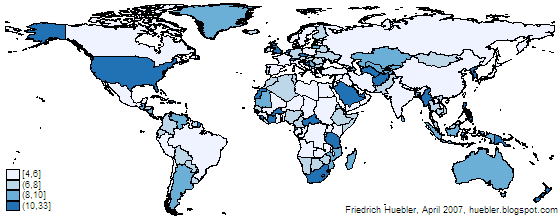
Two Stata guides on this site have been updated. The guide to creating maps with Stata now covers the recently released module spmap by Maurizio Pisati, an update to his tmap module. Both spmap and tmap are free add-ons for the Stata statistical package. The guide to creating PNG images with Stata was also revised.

Map created with spmap in Stata: length of country names
Example map created with spmap in Stata

Related articles
Friedrich Huebler, 1 April 2007, Creative Commons License
Permanent URL: http://huebler.blogspot.com/2007/04/updates-to-two-stata-guides.html

22 June 2006

Update to "Integrating Stata and external text editors"

My guide to integrating Stata and external text editors has been updated. I added a new section with supported editors. So far, six editors are listed: EmEditor, Hidemaru, jEdit, TextPad, Vim, and WinEdt.

If you know of other editors that work with the AutoIt scripts described in the guide, please leave a comment below or send a message to fhuebler@gmail.com so that I can update the list of supported editors.

Friedrich Huebler, 22 June 2006 (edited 29 June 2006), Creative Commons License

13 April 2006

Update to "Creating maps with Stata"

The guide to Creating maps with Stata has been updated. Users of Stata 9.1 or a more recent version can now convert shapefiles directly to Stata format with a new program called shp2dta. Read the guide to learn more.

Related articles
Friedrich Huebler, 13 April 2006, Creative Commons License

05 February 2006

Maps with international education statistics

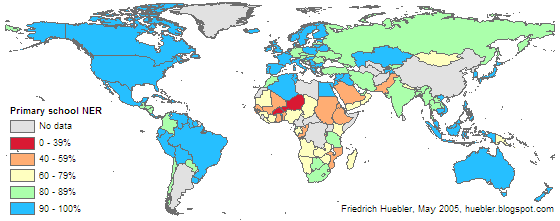
Maps are a powerful tool to visualize statistics. This site uses maps for cross-country comparisons of data like national primary school enrollment rates, shown in the map below.

Primary school net enrollment rate, 2002/2003
Map of the world showing primary school net enrollment rate for each country in 2002/03
Data source: UNESCO Institute for Statistics (UIS). 2005. Global Education Digest 2005. Montreal: UIS.

Here is a list of articles on this site that include maps with international education statistics:
My recently updated guide to creating maps with Stata shows how the Stata statistical package and its tmap module can be used to create these and other maps.

Friedrich Huebler, 5 February 2006 (edited 30 March 2006), Creative Commons License

06 November 2005

Guide to creating maps with Stata (archived version)

As of 31 August 2012, this document is no longer maintained and has been replaced by a new guide to creating maps with Stata. The archived version of the guide is only of interest to users of Stata 8, who will find instructions below. All users of Stata 9 or later versions are advised to follow the new guide. Please change your links to the new guide: http://huebler.blogspot.ca/2012/08/stata-maps.html.


The graphs and maps on this site are created with the Stata statistical package. This article describes how to make maps like those showing Millennium Development Goal regions and UNICEF regions in Stata from a shapefile.

Shapefiles store geographic features and related information and were developed by ESRI for its ArcGIS line of software. The shapefile format is used by many other programs and maps in this format can be downloaded from various sites on the Internet. Another common map format is the MapInfo Interchange Format for use with the MapInfo software. Shapefile data is usually stored in a set of three files (.shp, .shx, .dbf), while MapInfo data is stored in two files (.mif, .mid). Some sources for shapefiles and other data are listed on the website of the U.S. Centers for Disease Control and Prevention (CDC) under "Resources for Creating Public Health Maps." The CDC itself provides shapefiles for all countries with administrative boundaries down to the state level. Please note that these shapefiles are not in the public domain and are intended for use with the CDC's Epi Info software only. Other sources of shapefiles can be found with a Google search.

This guide is divided into two parts. Read part 1 if you have Stata 9 or 10 and part 2 if you have Stata 8. The creation of maps is not supported in older versions of Stata.


Part 1: Creating maps with Stata 9 or 10

To create a map with Stata 9 or 10 you need the following software.
  • Stata version 9.2 or newer.
  • spmap: Stata module for drawing thematic maps, by Maurizio Pisati. Install in Stata with the command "ssc install spmap".
  • shp2dta: Stata module for converting shapefiles to Stata format, by Kevin Crow. Install in Stata with the command "ssc install shp2dta".
  • Shapefile: For the example in this guide, download world_adm0.zip (646 KB), a shapefile that contains the boundaries of all countries of the world.
Step 1: Convert shapefile to Stata format
  • Unzip world_adm0.zip to a folder that is visible to Stata. The archive contains three files called world_adm0.dbf, world_adm0.shp, and world_adm0.shx.
  • Start Stata and run this command:
    shp2dta using world_adm0, data(world-d) coor(world-c) genid(id)
    Two new files will be created: world-d.dta (with the country names and other information) and world-c.dta (with the coordinates of the country boundaries). If you plan to superimpose labels on a map, for example country names, you should run the following command instead, which will add centroid coordinates to the file world-d.dta:
    shp2dta using world_adm0, data(world-d) coor(world-c) genid(id) genc(c)
    Please refer to the spmap documentation to learn more about labels because they are not covered in this guide.
  • The DBF, SHP, and SHX files can be deleted.
Some shapefiles are not compatible with the shp2dta command and Stata will abort the conversion with an error message. If this is the case, you can use a combination of two other programs, shp2mif and mif2dta. These programs are explained in the instructions for Stata 8 (see Step 1 and Step 2 in part 2 of this guide).

Step 2: Draw map in Stata
  • Open world-d.dta in Stata.
  • The file contains no country-specific data that could be used for this example so we will create a variable with the length of each country's name. The Stata command for this is:
    generate length = length(NAME)
  • Draw a map that indicates the length of all country names with this command:
    spmap length using "world-c.dta", id(id)
    Be patient because spmap is slow if a map contains many features.
  • The default map is monochrome, it shows Antarctica, the legend is too small and the legend values are arranged from high to low. We can draw a second map without Antarctica, with a blue palette, and with a bigger legend with values arranged from low to high:
    spmap length using "world-c.dta" if NAME!="Antarctica", id(id) fcolor(Blues) legend(symy(*2) symx(*2) size(*2)) legorder(lohi)
You now have the map below. Darker colors indicate longer names, ranging from 4 letters (for example Cuba and Iraq) to 33 letters (Falkland Islands (Islas Malvinas)). To customize the map further, please read the Stata help file for spmap.

Map created with spmap in Stata: length of country names
Example map created with spmap in Stata

The instructions above can be used to convert any shapefile to Stata format. If you have maps in MapInfo format you have to use another program called mif2dta that is described in part 2 of this guide.


Part 2: Creating maps with Stata 8

To create a map with Stata 8 you need the following software.
  • Stata version 8.2.
  • tmap: Stata module for thematic mapping by Maurizio Pisati. Install in Stata with the command "ssc install tmap".
  • mif2dta: Stata module for converting files from MapInfo to Stata format, also by Maurizio Pisati. Install in Stata with the command "ssc install mif2dta".
  • SHP2MIF: DOS program for converting shapefiles to MapInfo format. Go to the the website of RouteWare and click on "SHP2MIF (135 Kb)" under the heading "Converters" to get ishp2mif.zip.
  • Shapefile: For the example in this guide, download world_adm0.zip (646 KB), a shapefile that contains the boundaries of all countries of the world.
Step 1: Convert shapefile to MapInfo format
  • Unzip ishp2mif.zip. The archive contains three files, among them SHP2MIF.EXE.
  • Unzip world_adm0.zip to the same folder as SHP2MIF.EXE. The archive contains three files called world_adm0.dbf, world_adm0.shp, and world_adm0.shx.
  • Open a DOS command window: Windows Start menu - Run - "command" - OK.
  • Change the path in the command window to the folder that contains SHP2MIF.EXE and the three map files. Use the DOS command "cd" to change the path.
  • SHP2MIF works best with short file names in the 8.3 format (name up to 8 characters, extension up to 3 characters). Rename the map files with this DOS command:
    rename world_adm0.* world.*
    The map files are now called world.dbf, world.shp, and world.shx.
  • Convert the maps to MapInfo format by typing "shp2mif world" in the DOS command window. This produces two new files: WORLD.MID and WORLD.MIF.
  • Close the DOS command window.
  • The DBF, SHP and SHX files can be deleted.
Step 2: Convert MapInfo files to Stata format
  • Move the MIF and MID files to a folder that is visible to Stata.
  • Start Stata and run this command:
    mif2dta world, genid(id)
    Two new files will be created: world-Coordinates.dta (with the country boundaries) and world-Database.dta (with the country names and other information). If you plan to superimpose labels on a map, for example country names, you should run the following command instead, which will add centroid coordinates to the file world-Database.dta:
    mif2dta world, genid(id) genc(c)
    Please refer to the tmap documentation to learn more about labels because they are not covered in this guide.
  • The MIF and MID files can be deleted.
Step 3: Draw map in Stata
  • Open world-Database.dta in Stata.
  • The file contains no country-specific data that could be used for this example so we will create a variable with the length of each country's name. The Stata command for this is:
    generate length = length(name)
  • Draw a map that indicates the length of all country names with this command:
    tmap choropleth length, map(world-Coordinates.dta) id(id)
    Be patient because tmap is slow if a map contains many features.
  • The default map is monochrome, it shows Antarctica and the legend is too small. We can draw a second map without Antarctica, with a blue palette, and with a bigger legend:
    tmap choropleth length if name!="Antarctica", map(world-Coordinates.dta) id(id) palette(Blues) legsize(2)
  • To reduce the margins, display the graph again and set the margins to zero:
    graph display, margins(zero)
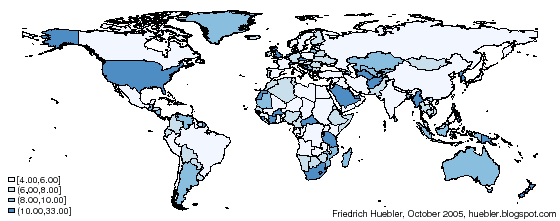
You now have the map below. Darker colors indicate longer names, ranging from 4 letters (for example Cuba and Iraq) to 33 letters (Falkland Islands (Islas Malvinas)). To customize the map further, please read the Stata help file for tmap and the tmap user's guide by Maurizio Pisati. The user's guide and additional tmap files can be downloaded in Stata with the commands "ssc describe tmap" and "net get tmap".

Map created with tmap in Stata: length of country names
Example map created with tmap in Stata

The instructions above can be used to convert any shapefile to Stata format. If you have maps in MapInfo format you can skip step 1 of the instructions and start with step 2.


Related articles
External linksFriedrich Huebler, 6 November 2005 (edited 31 August 2012), Creative Commons License
Permanent URL: http://huebler.blogspot.com/2005/11/creating-maps-with-stata.html